Best Mechanical Keyboards for Remote Work 2025: Typing All Day Without Wrist Pain
 Marcus Chen••13 min read
📢 Affiliate Disclosure: This article contains affiliate links. If you purchase through these links, we may earn a commission at no additional cost to you. This helps us maintain our free job board and create helpful content. Read our full disclosure policy.
The Day My Wrists Started Hurting
It was a Tuesday morning, three months into my new remote software engineering job. I woke up and my right wrist felt... wrong. Not painful exactly, but tight. Like someone had wrapped a rubber band around it while I slept. I ignored it, made coffee, sat down at my desk with my $15 membrane keyboard from Amazon, and started typing.
By noon, the tightness had become a dull ache. By 3pm, every keystroke sent a little jolt up my forearm. I was 28 years old and apparently developing carpal tunnel syndrome from typing Slack messages and code reviews.
That's when I fell down the mechanical keyboard rabbit hole. I didn't just want a "better keyboard"—I needed something that wouldn't destroy my wrists over the next 30 years of remote work. After testing 12 different keyboards (and returning most of them), here's what actually works.
Quick Comparison: Top Picks
| Keyboard | Best For | Price |
|---|---|---|
| Kinesis Freestyle Pro | Best Ergonomic Split | $169-$209 |
| Keychron K8 Pro | Best Wireless Overall | $109 |
| Logitech MX Keys | Best for Mac Users | $99-$119 |
| Ducky One 3 | Best Budget Mechanical | $99-$129 |
1. Kinesis Freestyle Pro - Best for Wrist Pain
Price: $169-$209 | Type: Split ergonomic, mechanical
This is the keyboard that fixed my wrist pain. The Freestyle Pro splits into two halves connected by a cable, letting you position each hand at shoulder width instead of cramping them together in the middle of your desk.
Why it works: Your shoulders naturally want to be wider apart than a standard keyboard allows. Forcing them inward for 8 hours daily creates tension in your neck, shoulders, and wrists. The Freestyle Pro eliminates this by letting you position each half wherever feels natural.
Real-world use: The first day felt weird. Really weird. I had to look at the keyboard constantly and my typing speed dropped from 95 wpm to maybe 40. By day three, I was back to 70 wpm. After two weeks, I was faster than before—and my wrists stopped hurting entirely.
Key features:
- Adjustable separation (comes with 8" or 20" cable options)
- Cherry MX Brown switches (quiet enough for video calls)
- Optional tenting kit ($50 extra) angles each half for even better ergonomics
- Dedicated media keys and programmable keys
- Works with Windows, Mac, Linux
Downsides: The learning curve is real. Budget an extra week to get comfortable. Also, it's wired only—no wireless option. And you'll need desk space for the split layout.
Who it's for: Anyone experiencing wrist pain, numbness, or tingling from typing. Remote workers who type 6+ hours daily. People willing to invest time learning a better layout.
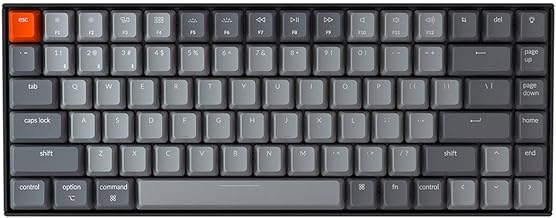
Keychron K8 Pro Wireless Mechanical Keyboard
- ✓Hot-swappable switches
- ✓QMK/VIA programmable
- ✓Wireless & USB-C
- ✓Mac and Windows compatible
As an Amazon Associate we earn from qualifying purchases.
2. Keychron K8 Pro - Best Wireless Mechanical
Price: $109 | Type: Wireless mechanical, tenkeyless
If you want a mechanical keyboard without the bulk of a numpad and the freedom of wireless, the Keychron K8 Pro hits the sweet spot. I use this when I'm working from coffee shops or want a cleaner desk setup.
What makes it special: It's hot-swappable, meaning you can change the switches without soldering if you want a different feel later. Most keyboards lock you into one switch type forever. Not this one.
Key features:
- Wireless (Bluetooth 5.1) or wired USB-C
- Hot-swappable switches (try different switches without buying a new keyboard)
- 80-hour battery life
- RGB backlighting (can be turned off)
- Mac and Windows compatible with keycap sets for both
- Tenkeyless layout saves desk space
Real-world use: I've been using mine for four months. The battery legitimately lasts weeks between charges. The wireless connection has never dropped mid-sentence (unlike my previous Logitech keyboard that would randomly disconnect). The typing feel is fantastic—I went with Gateron Brown switches for a quiet-ish tactile bump.
Minor annoyances: The keycaps are a bit shiny and show fingerprints. The RGB software (VIA) works but isn't as polished as Razer or Corsair. And at 1.7 lbs, it's too heavy to throw in a backpack for daily commuting (though fine for occasional travel).
Who it's for: Remote workers who want wireless freedom without sacrificing mechanical feel. People who like tinkering (hot-swap makes experimentation easy). Anyone who hates numpads taking up desk space.

Logitech MX Keys Advanced Wireless Keyboard
- ✓Perfect-stroke keys
- ✓Backlit adaptive keys
- ✓Multi-device pairing
- ✓Rechargeable battery
As an Amazon Associate we earn from qualifying purchases.
3. Logitech MX Keys - Best for Mac Users
Price: $99-$119 | Type: Low-profile wireless
Okay, controversial take: the MX Keys isn't technically "mechanical" (it uses scissor switches like a laptop), but it's the best typing experience you'll get if you're coming from a MacBook and want something similar but better.
Why Mac users love it: It perfectly matches the Apple aesthetic with its aluminum finish and minimalist design. The key layout mirrors MacBook keyboards, so there's zero learning curve. And it works seamlessly with macOS features like Mission Control and Spotlight.
Key features:
- Wireless (Bluetooth or Logitech Unifying receiver)
- Backlit keys that auto-adjust to room lighting
- Multi-device support (switch between 3 devices with a button)
- USB-C rechargeable (lasts weeks per charge)
- Low-profile keys feel like a premium laptop keyboard
Real-world use: My partner uses this with her MacBook Pro and iPad. She switches between devices constantly—laptop for work, iPad for design sketching—and the device-switching feature is apparently "magic." The typing feel is quiet and comfortable, perfect for her all-day writing sessions.
Tradeoff: If you prefer deep, clicky mechanical switches, this will feel mushy. It's optimized for quiet, fast typing—not satisfying "thock" sounds.
Who it's for: Mac users who want a better typing experience than the MacBook keyboard. People who switch between multiple devices. Anyone who needs a quiet keyboard for shared workspaces.

Ducky One 3 Mechanical Keyboard
- ✓Premium build quality
- ✓Hot-swappable switches
- ✓PBT keycaps
- ✓RGB backlight
As an Amazon Associate we earn from qualifying purchases.
4. Ducky One 3 - Best Budget Mechanical
Price: $99-$129 | Type: Wired mechanical
If you want a "real" mechanical keyboard but don't want to spend $150+, the Ducky One 3 is the answer. It's a enthusiast-grade keyboard at a mainstream price.
Key features:
- Cherry MX switches (your choice of Red, Brown, Blue, or Black)
- Double-shot PBT keycaps won't fade or wear out
- Extremely solid build quality (1.3 kg / 2.9 lbs)
- Hot-swappable (on some models)
- No bloatware software required
What I like: It feels expensive despite the price. The keycaps are thick, the frame doesn't flex, and the switches feel consistent. I tested it against a $180 Das Keyboard and honestly couldn't tell the difference in typing feel.
What's missing: No wireless option. No fancy RGB (just single-color backlighting). No dedicated media keys—you use function layer combos.
Who it's for: First-time mechanical keyboard buyers who want quality without overspending. People who don't need wireless. Minimalists who hate gamer aesthetics.

Kinesis Freestyle Pro Ergonomic Keyboard
- ✓Split ergonomic design
- ✓Mechanical switches
- ✓Programmable keys
- ✓Reduces wrist strain
As an Amazon Associate we earn from qualifying purchases.
Understanding Mechanical Switch Types
This confused me at first, so here's the simple version:
Cherry MX Browns (Tactile): A little bump when you press each key. Quiet enough for video calls. Best all-around choice for typing and coding. This is what I recommend for most remote workers.
Cherry MX Reds (Linear): Smooth press with no bump. Super quiet. Preferred by gamers but also great if you type lightly and fast.
Cherry MX Blues (Clicky): Loud click sound and tactile bump. Sounds amazing, feels great, but will annoy everyone on your Zoom calls. Only get these if you work alone.
Cherry MX Blacks (Linear): Like Reds but require more force. Good if you tend to accidentally press keys.
My advice? Start with Browns. They're the vanilla ice cream of switches—universally liked, good for everything.
Common Keyboard Mistakes Remote Workers Make
Mistake #1: Buying based on looks instead of feel. That $200 RGB gaming keyboard might look cool, but if it has the wrong switches for your typing style, you'll hate using it. Try before you buy if possible, or buy from somewhere with easy returns.
Mistake #2: Ignoring ergonomics until pain starts. I made this mistake. Don't wait for wrist pain to develop. If you're typing 6+ hours daily, invest in proper ergonomics now.
Mistake #3: Getting full-size when you don't need a numpad. Tenkeyless (no numpad) or 75% keyboards save desk space and let you position your mouse closer to your body, reducing shoulder strain.
Mistake #4: Assuming wireless means lag. Modern wireless keyboards (like the Keychron K8 Pro) have zero noticeable latency. Unless you're a pro gamer, wireless is fine.
Do You Actually Need a Mechanical Keyboard?
Honestly? Probably not if you only type a couple hours daily or you're perfectly happy with your current keyboard.
But if you're experiencing any wrist discomfort, or you type for 6+ hours daily, or you just want typing to feel better, a good mechanical keyboard makes a real difference. I type about 8 hours a day between code, documentation, and Slack. Since switching to the Kinesis Freestyle Pro, I haven't had wrist pain, my typing speed increased, and—this sounds weird—I actually enjoy typing now.
For something you interact with thousands of times daily, it's worth getting right.
Ready to upgrade your workspace? Browse remote jobs and build the perfect home office setup.
Affiliate Disclosure: This article contains affiliate links. If you purchase through these links, we may earn a commission at no additional cost to you. This helps us maintain our free job board and create helpful content. Read our full disclosure policy.